Meetings · 2 min read · Updated October 24, 2026
A webcam for Zoom, Google Meet and Teams
You do not need a new camera for the meeting. The phone on a stand is the webcam. How it shows up depends on whether the meeting is in a browser or in a desktop app.
Google Meet
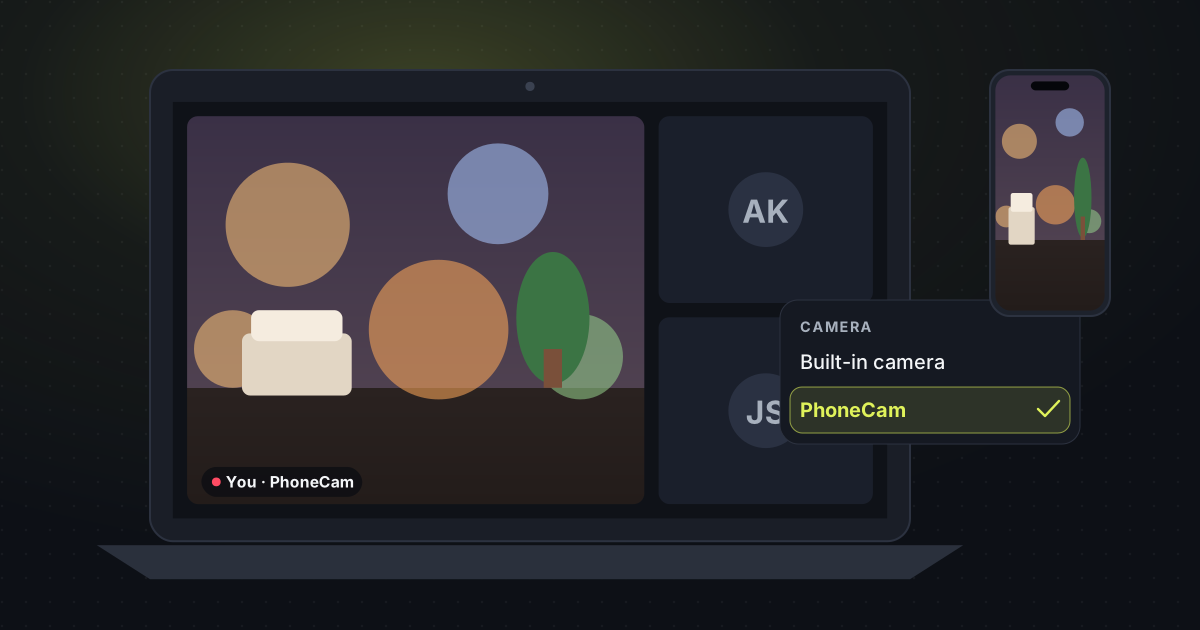
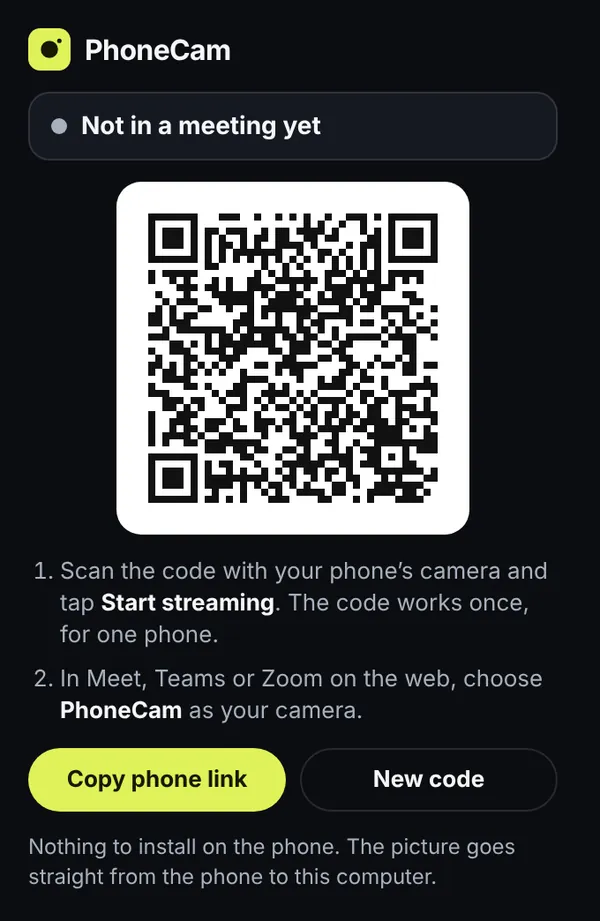
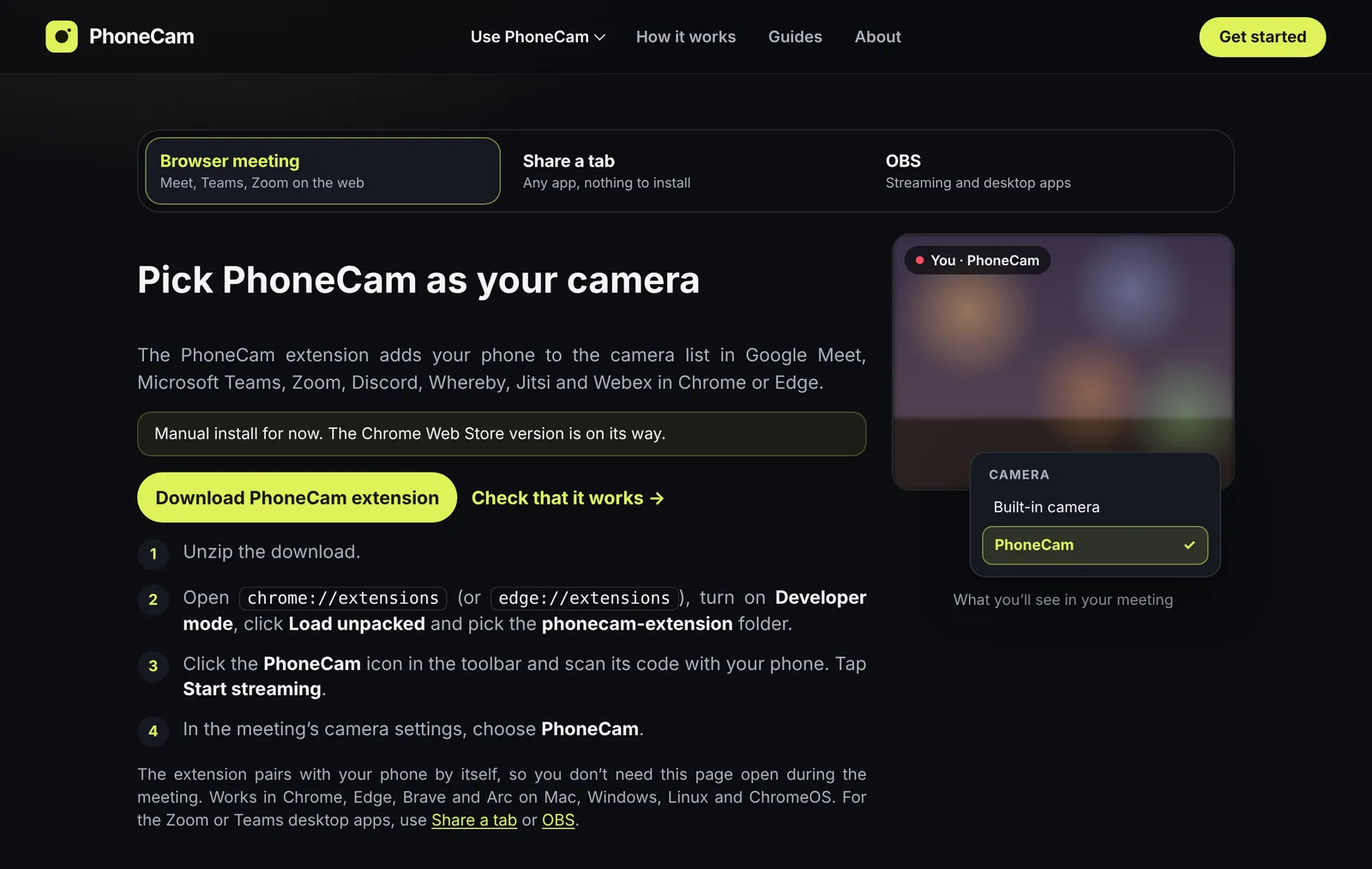
Meet runs in the browser. Install the PhoneCam extension in Chrome or Edge, start the camera on your phone, and Meet’s camera list includes one called PhoneCam. Pick it the way you would pick any other camera. The same extension also covers Discord, Whereby, Jitsi and Webex on the web.
Zoom in the browser
Zoom in Chrome or Edge works the same way. Join from the browser, open the camera menu, and choose PhoneCam. You get a normal camera tile, not a screen share.
The Zoom and Teams desktop apps
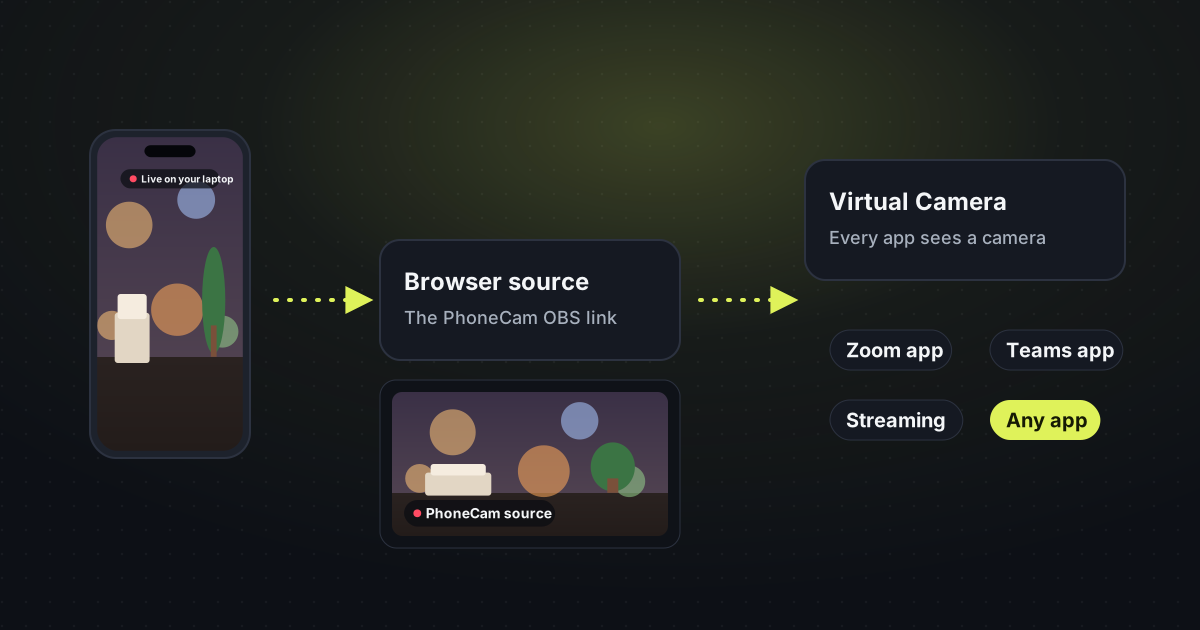
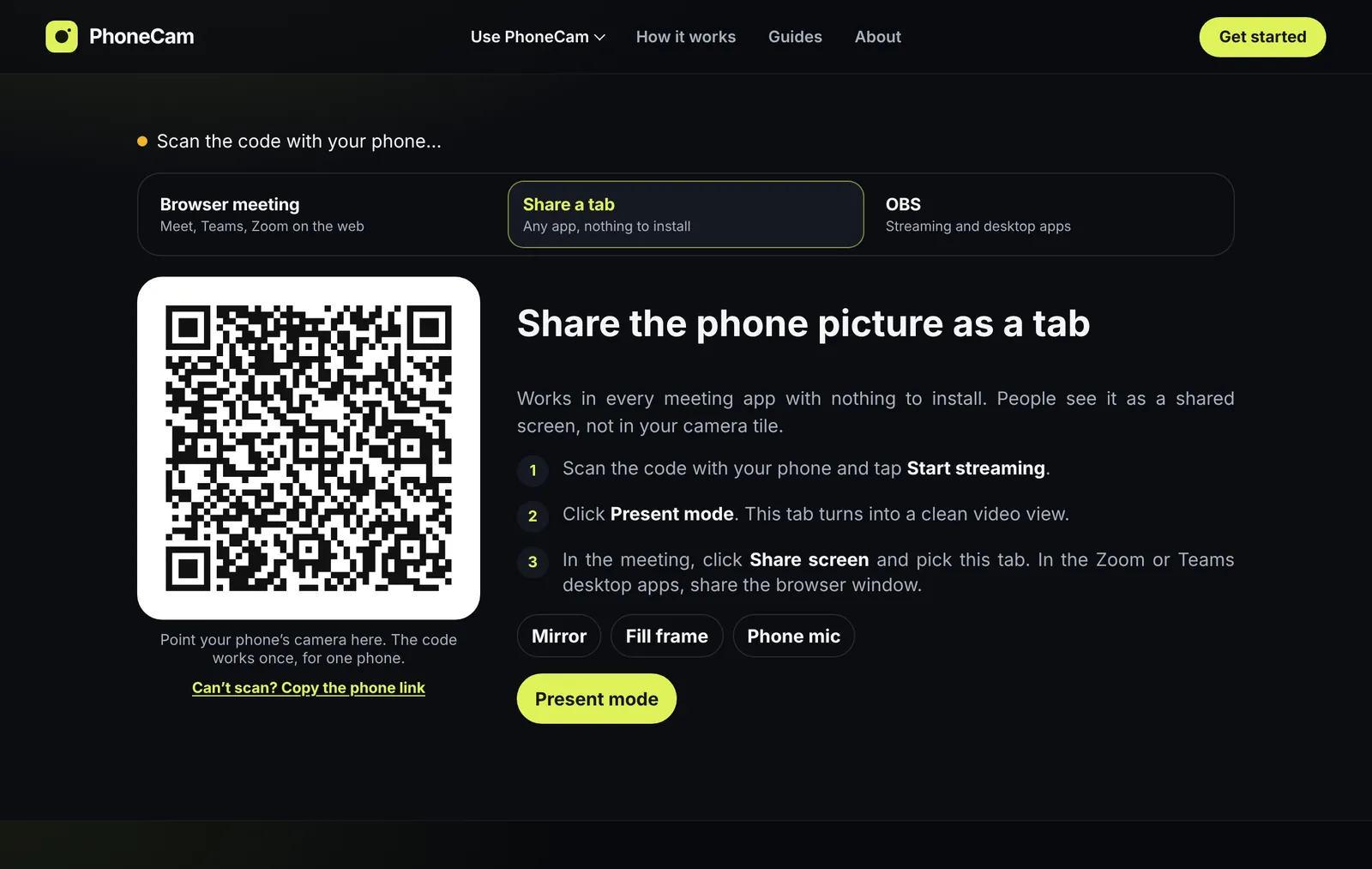
The Zoom and Teams apps on your computer cannot see a browser camera. Two paths still work, and neither needs a webcam:
- Share a tab. Nothing to install. Share the PhoneCam tab in the meeting. People see it as a shared screen.
- OBS. If you already use OBS, add PhoneCam as a browser source and start the virtual camera. The desktop app then sees a real camera. The steps are on phone camera in OBS.
Teams in the browser, like Meet, can use the extension and the camera called PhoneCam. The Teams desktop app follows the two paths above.
Before the call
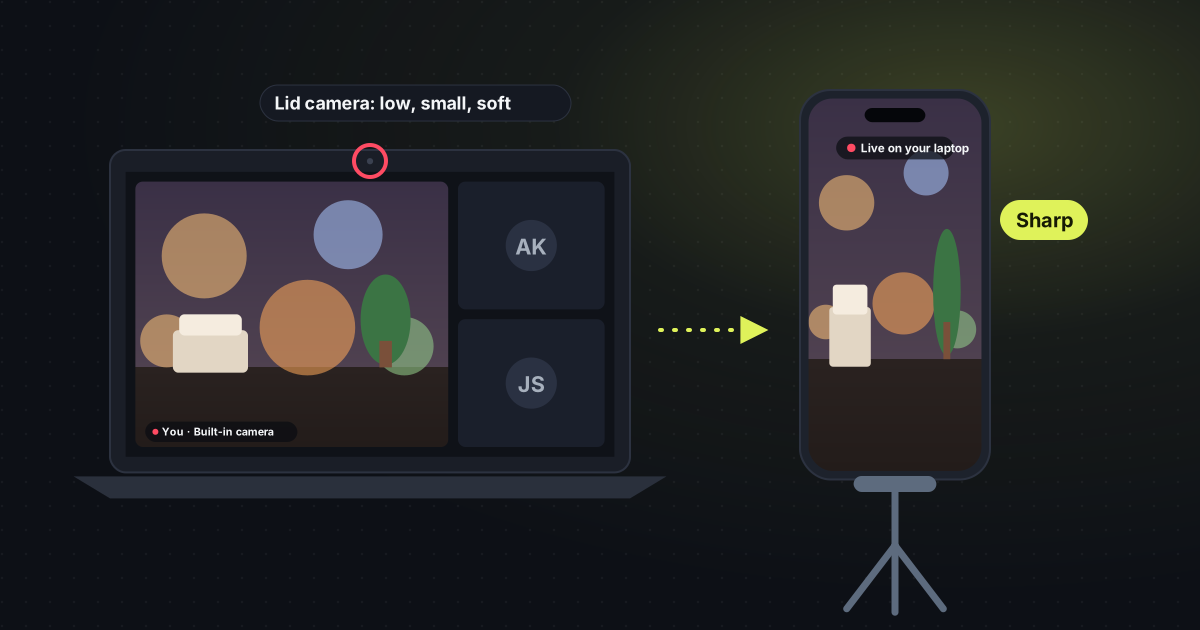
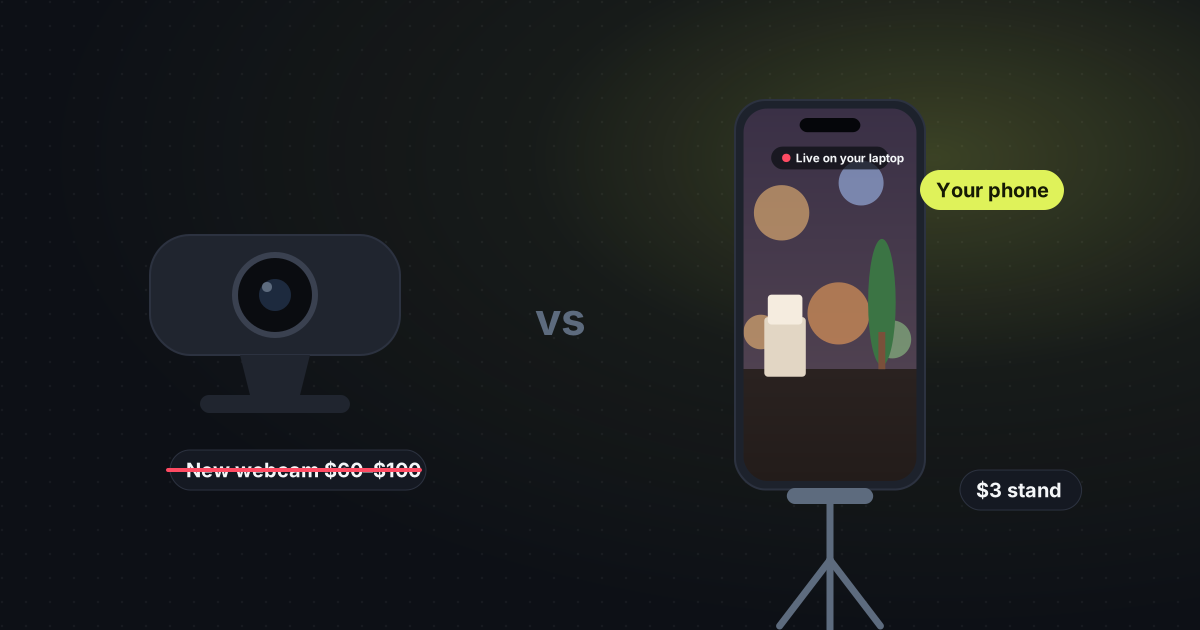
Put the phone at eye level. A stand of about $3 is enough. Face a window if the room is dim. The laptop’s built-in camera is what looks tired in meetings. This replaces it. If that camera is the problem you are trying to solve, a soft laptop camera is the longer version. The phone setup itself is use your phone as a webcam.