The PhoneCam story
You were about to buy a webcam. The better camera is already in your pocket.
A laptop camera looks down at you and goes soft when the room gets dim. A cheap webcam is that same idea with a cable. PhoneCam sends the phone you already own to the laptop, for the interview, the class, the client call and the stream.
The meeting starts, and the first thing you do is apologise for the picture. The camera in the laptop lid is small, fixed, and usually aimed up your nose. You lean in. You tilt the screen until the keyboard is in the way. Someone says you look dark, or far away, or soft.
The usual next step is a shopping tab. A webcam under about $100 promises to fix it. Most of them are another small sensor, this time glued to the top of the same screen, with a USB cable. The angle does not move. The room does not get kinder. You have paid for a plastic shell.
The camera people trust for photos has been in their pocket the whole time. The missing piece was a way to put it in the meeting.
What the laptop camera cannot do
A lid camera has one job and one place. It sits above the screen, so it looks down. It cannot move to eye level. It cannot step aside when a window is behind you. In a dim room it smears the picture to keep a frame rate, which is why a face goes soft the moment the lamp is in the wrong place.
Wiping the lens helps. Facing a window helps. A new webcam of the same size helps less than the box suggests. The longer version of that is why a laptop camera looks soft.
The phone was always the better camera
A phone from the last few years focuses. It copes with a bright window more gracefully than a tiny webcam. Put it on a clip, a gooseneck or a mini tripod, often about $3, and you choose the angle: eye level, beside the laptop, or aimed at a desk. The lid no longer decides where your face sits.
That is the whole shopping list. The phone you have. A stand, if you want the phone to stay still. The laptop you already join meetings on. The case for skipping the webcam is spelled out in why you may not need to buy one.

Getting the picture across was the hard part
Phones have been better cameras than laptops for years. Using one in a call usually meant an app from the store, another program on the computer, and an account to tie them together. The camera was good. The path to the meeting was a product of its own.
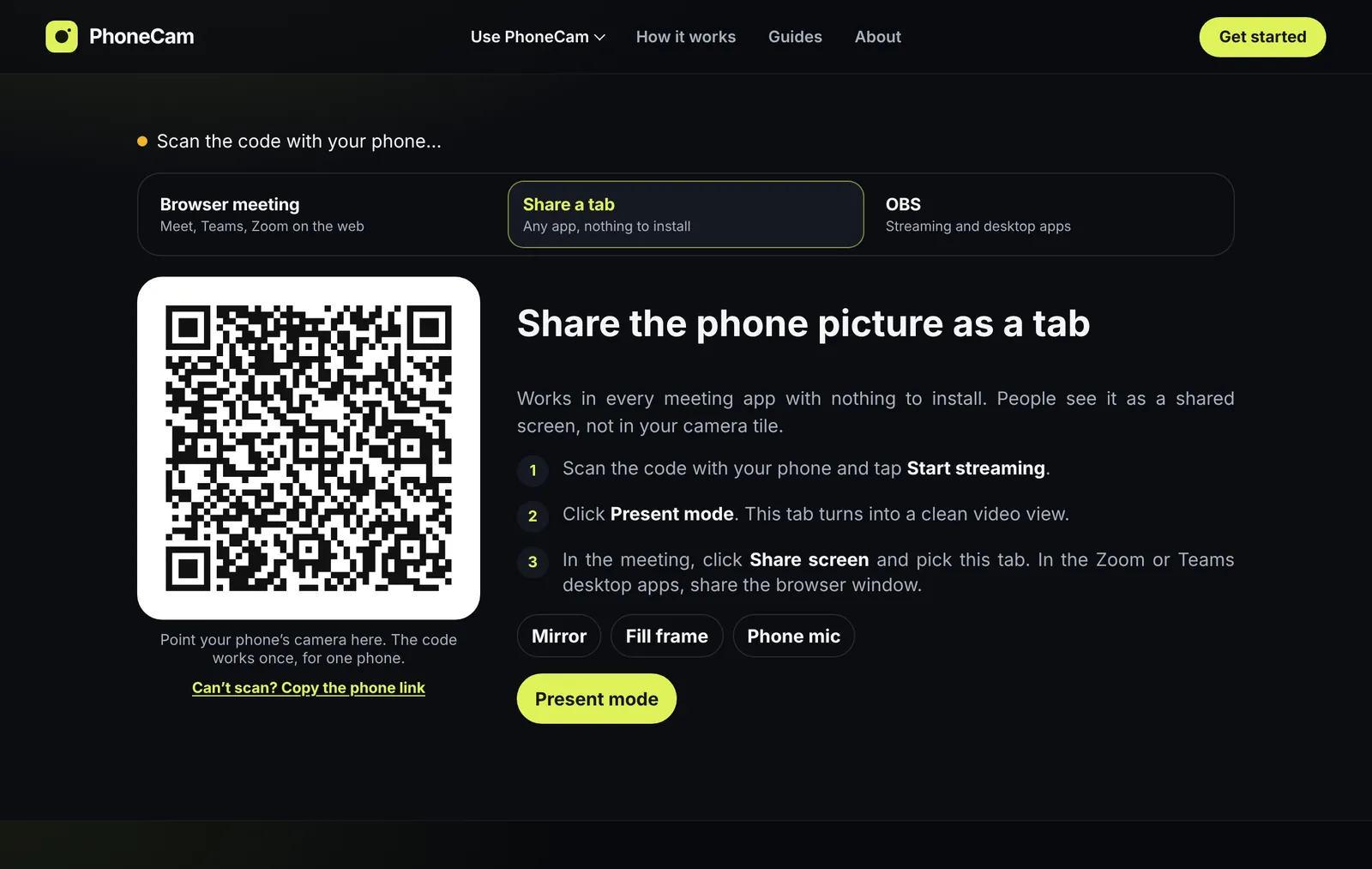
PhoneCam is that path, and nothing else. It opens in Safari or Chrome. On the laptop you open the receiver, scan the code, and tap Start. There is nothing to install on the phone and nothing to sign up for. The steps sit on one page: use your phone as a webcam. The same idea, with the details that differ, is written for iPhone and Android.
On a Mac, Apple’s Continuity Camera can already use a nearby iPhone as the webcam. Use that if it does what you want. PhoneCam is there when the computer is a Windows PC or a Chromebook, when the phone should sit on a stand at a chosen angle, or when the meeting needs a browser camera, a shared tab, or an OBS source.
The days it is actually for
PhoneCam is built for ordinary calls, not a studio. The phone stays where you put it. The laptop runs the meeting. These are the three that come up most.
The interview
Eye level, with the light in front of you. In the browser the camera is named PhoneCam. In the Zoom or Teams desktop app, you share the tab.
The class or the client call
The phone does not have to live in the lid. A stand holds it. You stop adjusting the screen so your face fits the frame.
The stream
OBS takes the phone as a browser source. Virtual Camera then hands that picture to any other app on the computer.
Where the video goes
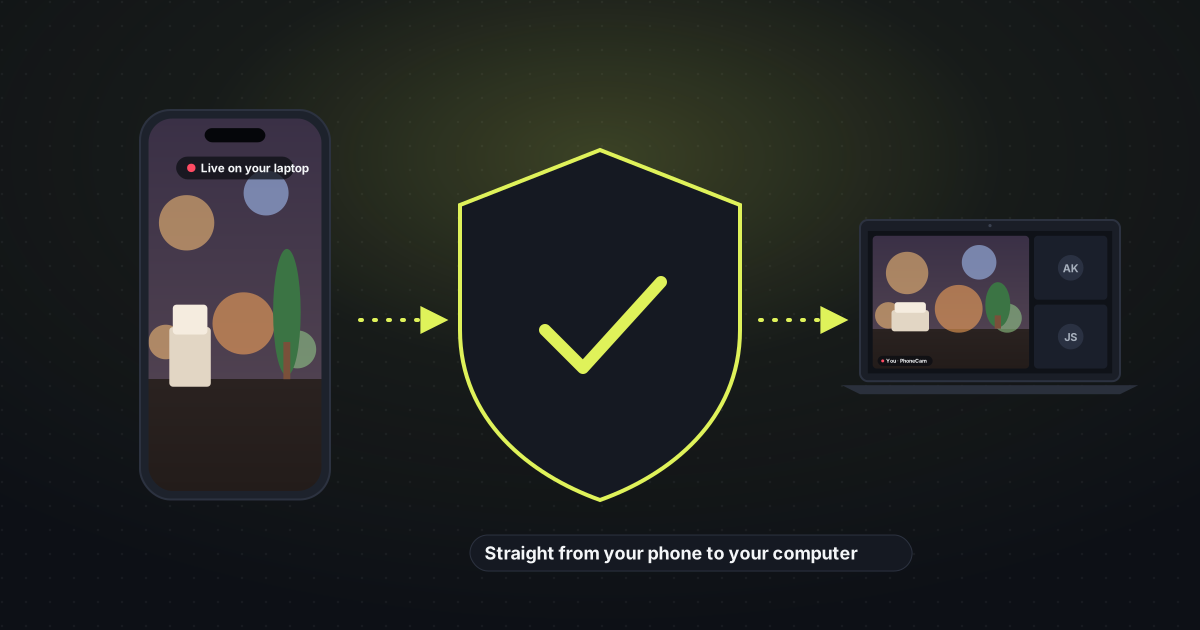
The video goes from the phone to the computer over an encrypted peer-to-peer connection. A small service on Cloudflare introduces the two devices and then steps aside. Before any picture moves, the phone and the laptop prove they share a secret from the QR code, so a stranger who learns a room cannot watch your camera or push video into your call.
On networks that block a direct path, such as some mobile data and strict office Wi-Fi, the encrypted video can pass through Cloudflare’s relay. The relay cannot read it. Nothing is recorded, and there is no account to attach the call to. The plain version of that promise is the privacy policy.
What we hold to
- The phone stays a phone. PhoneCam is a website. Safari or Chrome is enough. Add it to the home screen if you want an icon, and that icon opens the camera.
- The video is yours. It crosses from your phone to your computer. We do not watch it, store it, or ask who you are.
- Free means free. No trial, no subscription, no sign-up. A stand of about $3 is the only purchase, and only if you want the phone to sit still.
- One phone, one code. A QR code pairs one phone, once. After that, only that phone can connect, and it reconnects without scanning again.
When a real webcam is the right buy
Buy one if you want a single USB cable and you never want to think about a phone battery. PhoneCam keeps the phone awake while you stream, and an iPhone pauses the camera if you leave Safari. A dedicated webcam is simpler in that one way. It is rarely the sharper picture, and it still cannot move.
Questions people ask first
Why does PhoneCam exist?
Because the camera in the laptop is the weak one, and the usual fix is to buy another weak one. The phone you already use for photos is the better camera. PhoneCam is how that picture joins Zoom, Meet, Teams and OBS.
Do I still need to buy a webcam?
Most people do not. A phone on a cheap stand is the setup. A dedicated webcam is the right buy only when you want one cable and no battery to watch.
Is PhoneCam free?
Yes. No account and no subscription. Nothing to install on the phone.
Does PhoneCam record my video?
No. The picture goes straight from your phone to your computer. The server only introduces the two devices.
If this is the problem you have
- The laptop camera looks soft
- You are about to buy a webcam
- You want the phone in the meeting today
- The phone is an iPhone
- The phone is Android
- The call is Zoom, Meet or Teams
- The picture should land in OBS
Every guide is listed on the guides page.
Open, and listening
The code is on GitHub. If a phone or a meeting app does something unexpected, email us. If the picture is the one you wanted, a rating helps the next person find it.