iPhone · 2 min read · Updated October 24, 2026
Use an iPhone as a webcam
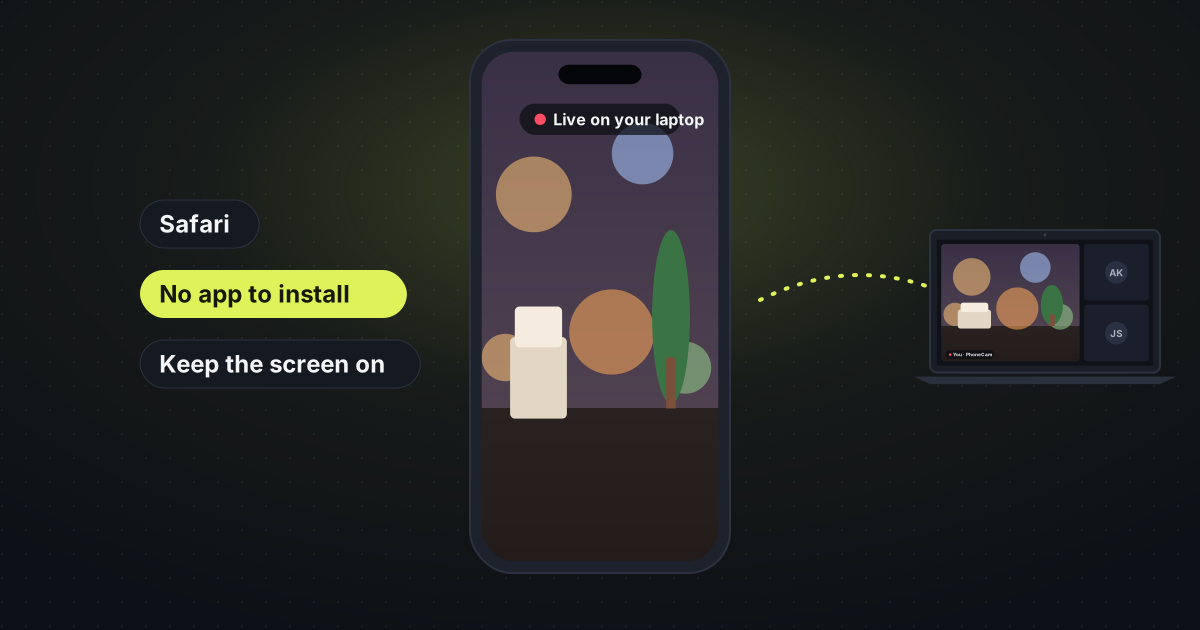
Open PhoneCam in Safari, scan the code on your laptop, and tap Start. There is no app to fetch from the App Store. A cheap phone stand keeps the iPhone at eye level.
What to know about iPhone
iOS pauses the camera if you switch away from Safari or lock the screen. Leave PhoneCam open and the screen on for the whole call. Plugging the phone in is worth it for a long meeting, so the battery is not the thing you watch.
You can add PhoneCam to your home screen. The icon opens straight to the camera the next time.

If the laptop is a Mac
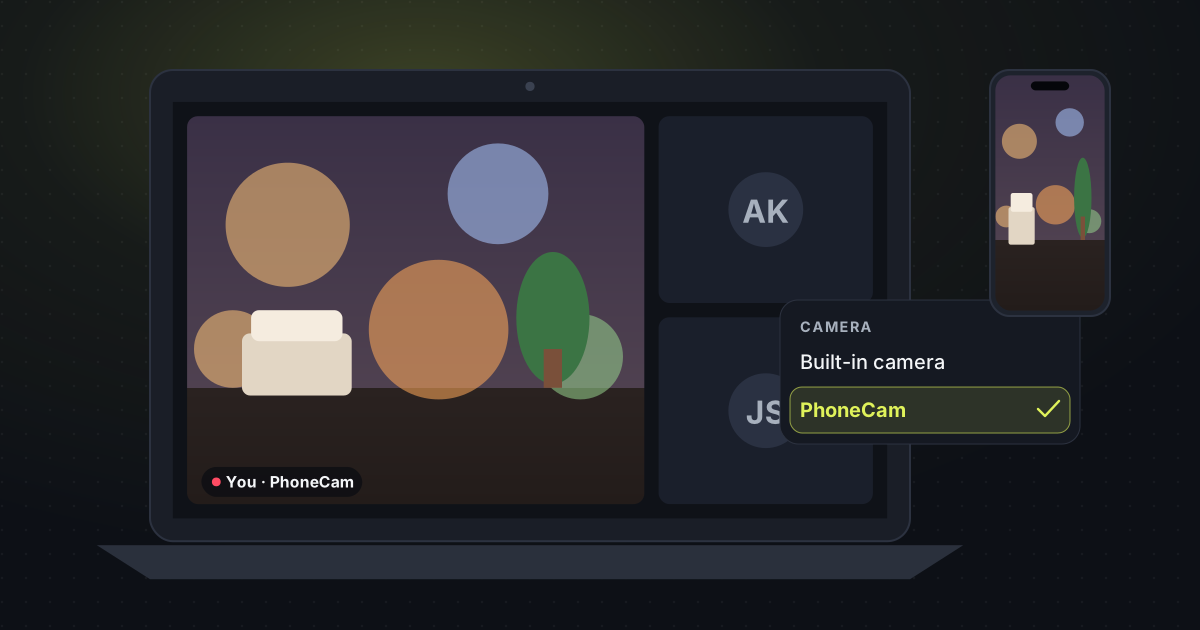
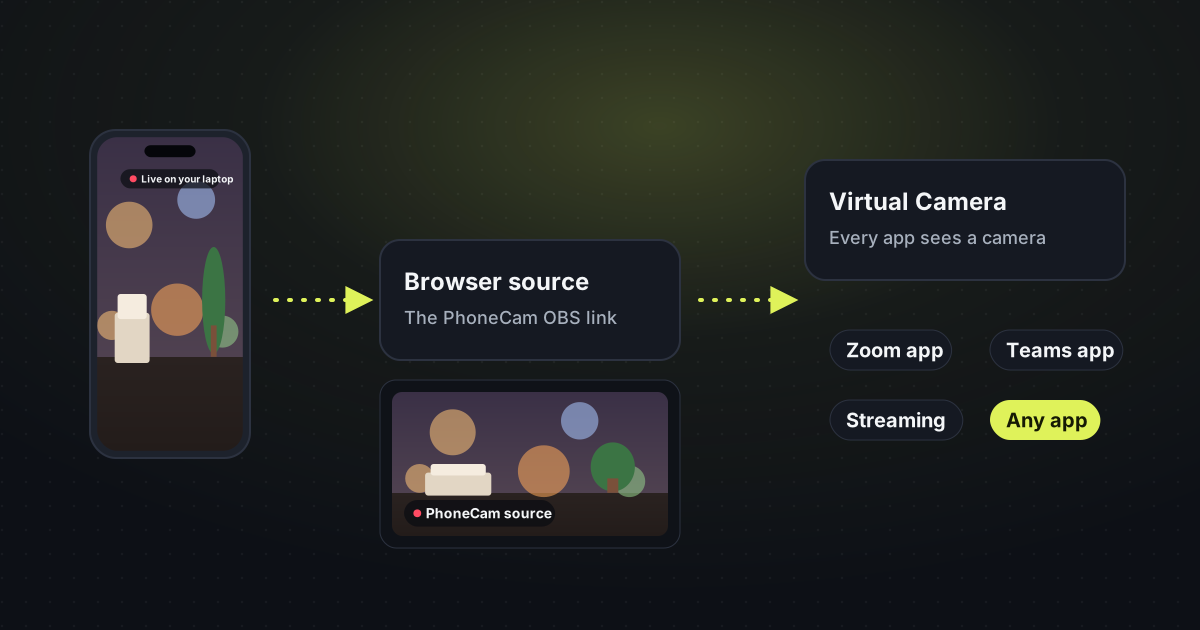
Apple’s Continuity Camera already lets a nearby iPhone act as a Mac webcam, with no extra site. Use that if it does what you want. Use PhoneCam when the computer is a Windows PC or a Chromebook, when you want the phone on a stand for a specific angle, or when the meeting should see a camera called PhoneCam, a shared tab, or an OBS source.
The steps
- On the laptop, open PhoneCam. Pick the extension, Share a tab, or OBS. A QR code appears.
- On the iPhone, open the Camera app and scan the code. Safari opens PhoneCam. Allow the camera, then tap Start.
- Put the phone on the stand, in front of a window if you can. In the meeting, pick PhoneCam or share the tab.
Same Wi-Fi is the most reliable. The two devices do not have to be on the same network, but some office networks and mobile data block a direct connection.
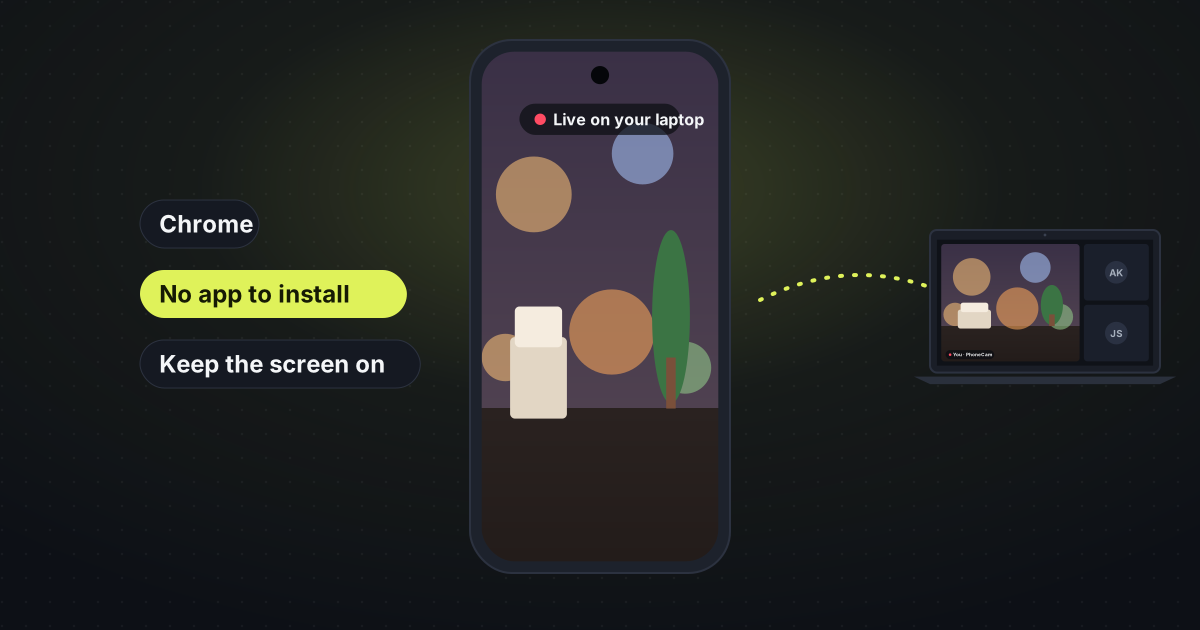
Android is the same idea in Chrome: use an Android phone as a webcam. The short version for any phone is use your phone as a webcam.