Android · 1 min read · Updated October 24, 2026
Use an Android phone as a webcam
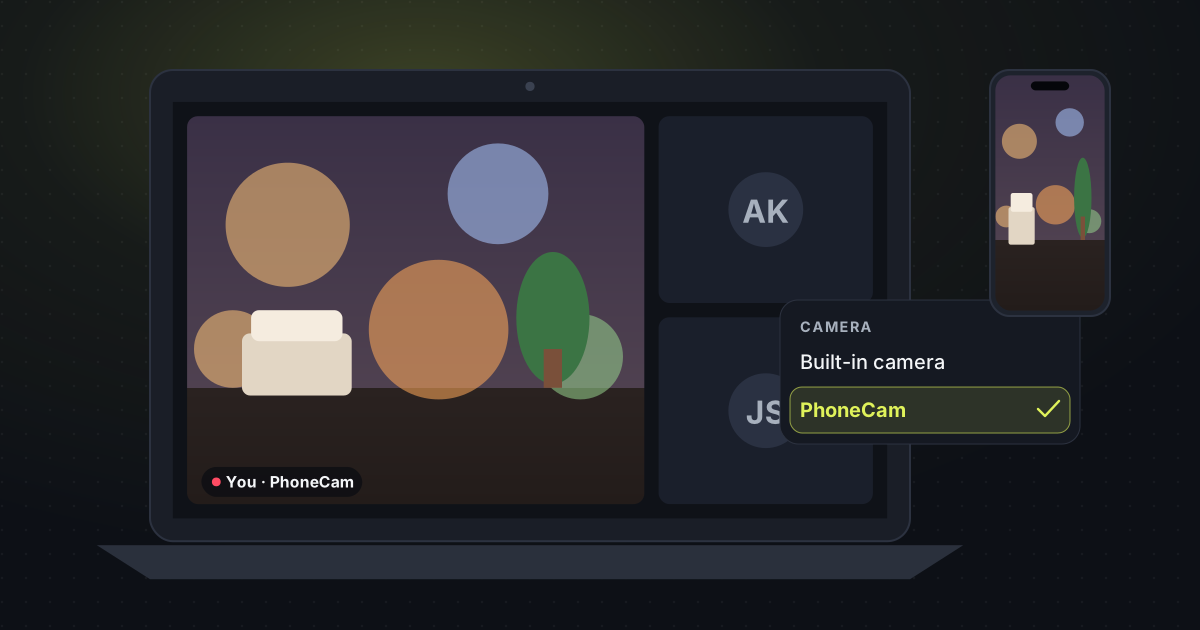
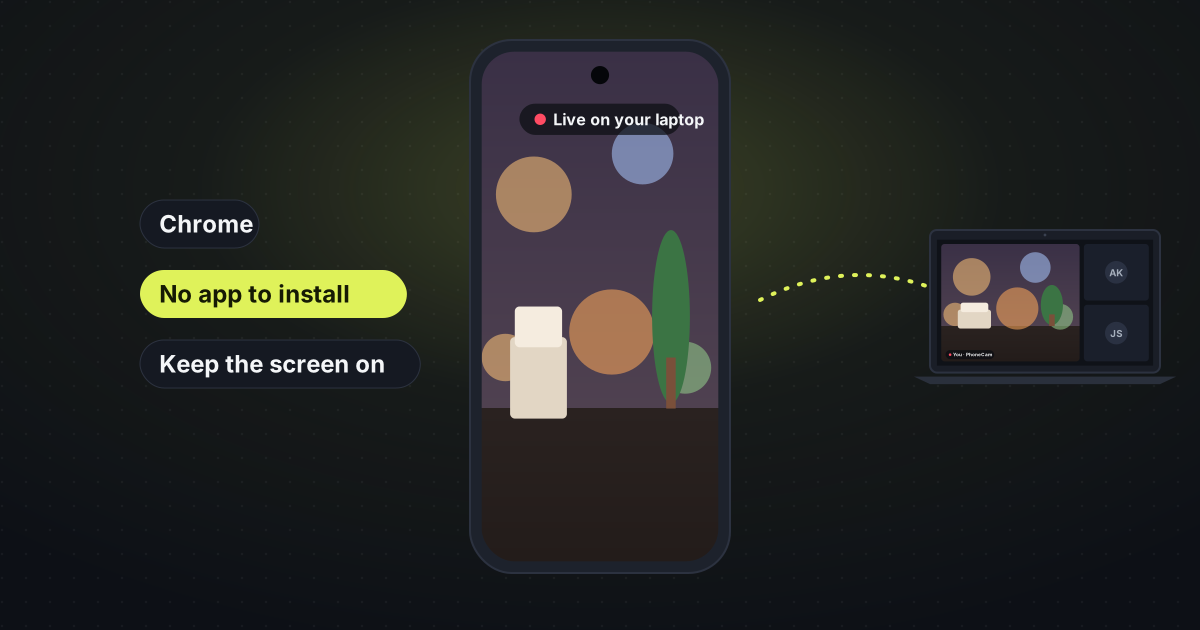
PhoneCam opens in Chrome. You do not install anything from the Play Store, and you do not make an account. The phone’s camera becomes the webcam on your laptop.
The steps
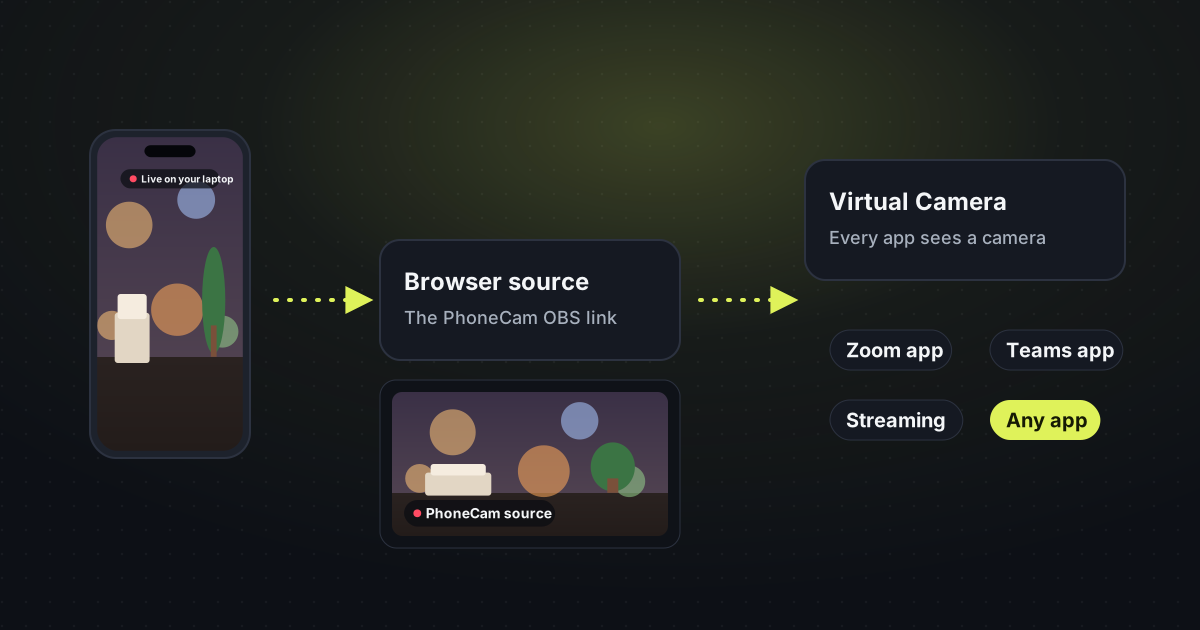
- On the laptop, open PhoneCam and choose the browser extension, Share a tab, or OBS.
- On the Android phone, scan the QR code with the camera app. Chrome opens. Allow the camera and tap Start.
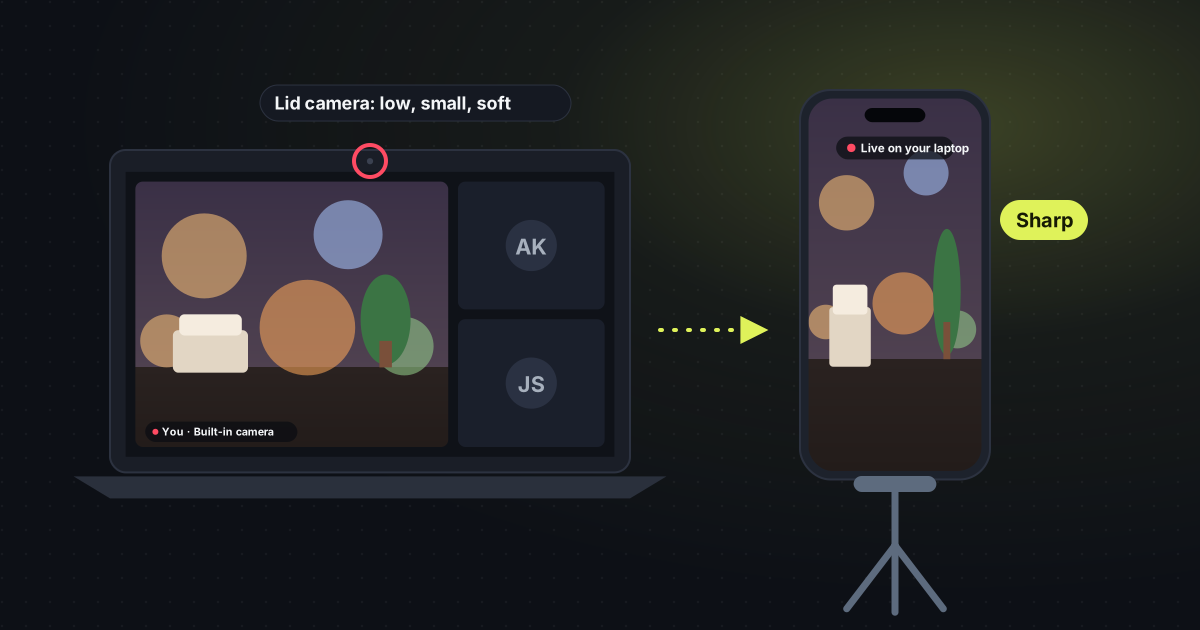
- Keep Chrome in front and the screen on. A stand of about $3 holds the phone at eye level, which is the part a laptop camera cannot do.
- In the meeting, pick the camera called PhoneCam, share the PhoneCam tab, or use OBS Virtual Camera.
You can add the page to your home screen. The icon then opens straight to the camera.
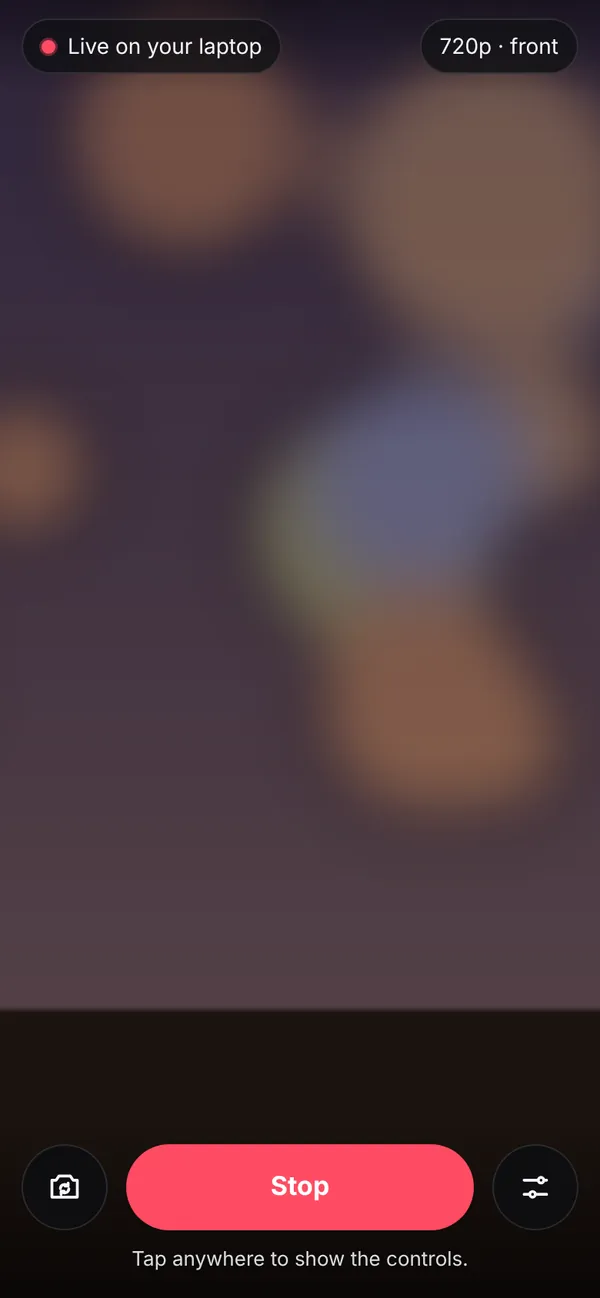
Front camera or back camera
The back camera is usually the sharper one. The front camera is easier to aim at your face. PhoneCam lets you switch, and you can include the phone mic if you want sound from that side of the room. Quality is 480p, 720p or 1080p at 30 fps.
On an iPhone the path is Safari instead of Chrome: use an iPhone as a webcam. For the meeting apps themselves, see Zoom, Meet and Teams.