Streaming · 1 min read · Updated October 24, 2026
Use your phone as a camera in OBS
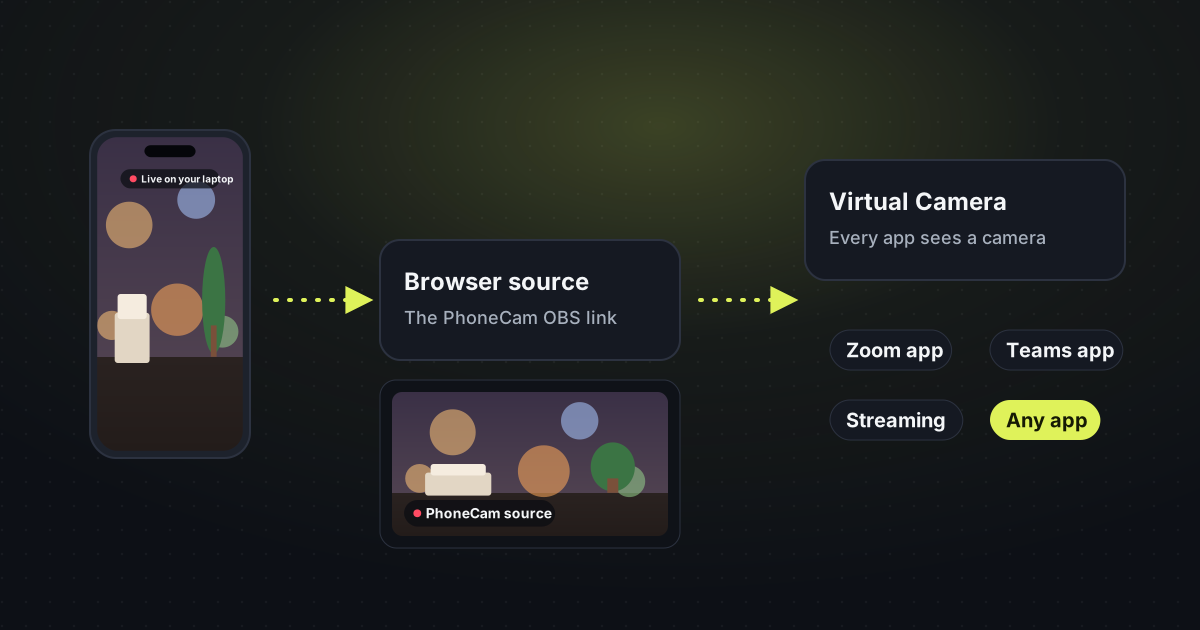
OBS can take the phone’s camera as a browser source. Start OBS Virtual Camera after that, and every app on the computer, including the Zoom and Teams desktop apps, sees a normal camera.
The steps
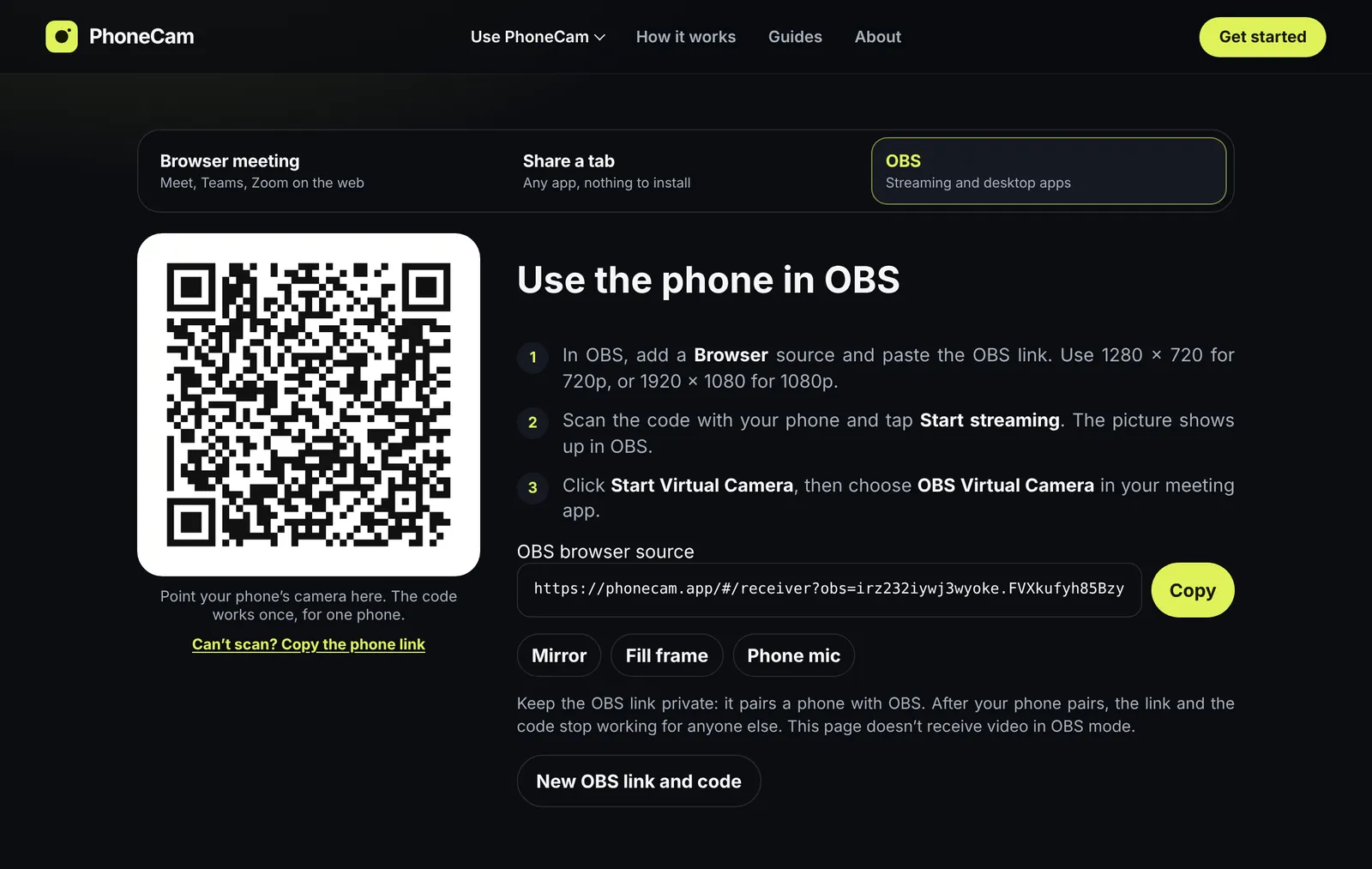
- On the laptop, open PhoneCam and choose OBS. Copy the browser-source link, and leave the QR code on screen.
- In OBS, add a Browser source and paste that link. The size can match 720p or 1080p, the same sizes PhoneCam sends.
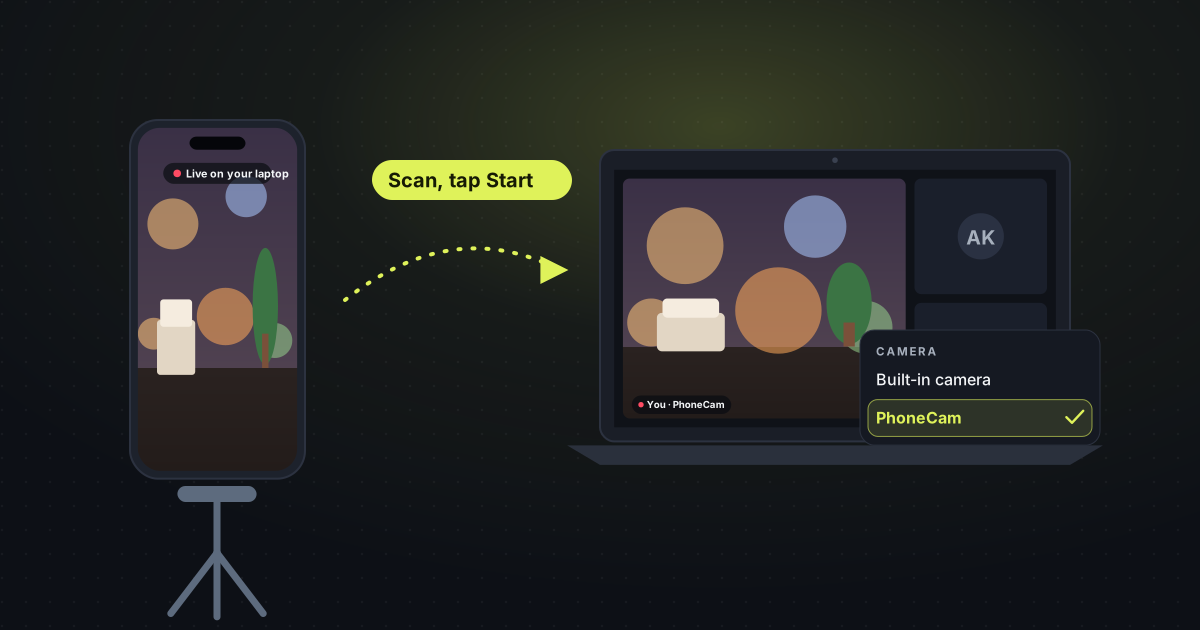
- On the phone, scan the code and tap Start. Keep the screen on. A stand keeps the phone still, which matters more on a stream than in a short call.
- In OBS, start Virtual Camera. In Zoom, Teams, or your streaming app, pick OBS Virtual Camera.
You do not need a capture card, and you do not install an app on the phone. OBS Studio itself is free.
Keep the link private
The browser-source link pairs a phone with that OBS source. Do not post it in a chat. After your phone pairs, that link stops working for anyone else.
If you are not streaming and you only need Meet or Zoom in the browser, the extension is simpler. That path is on a webcam for Zoom, Meet and Teams.