Setup · 2 min read · Updated October 24, 2026
Use your phone as a webcam
PhoneCam turns the camera in your phone into the camera your laptop uses. It runs in the phone’s browser. There is no app to install, no account, and nothing is recorded.
What you need
- An iPhone or Android phone, with Safari or Chrome.
- The laptop you use for the meeting or the stream.
- A phone stand if you want the camera at eye level. A basic one is about $3. Leaning the phone against a mug also works for a first try.
Three steps
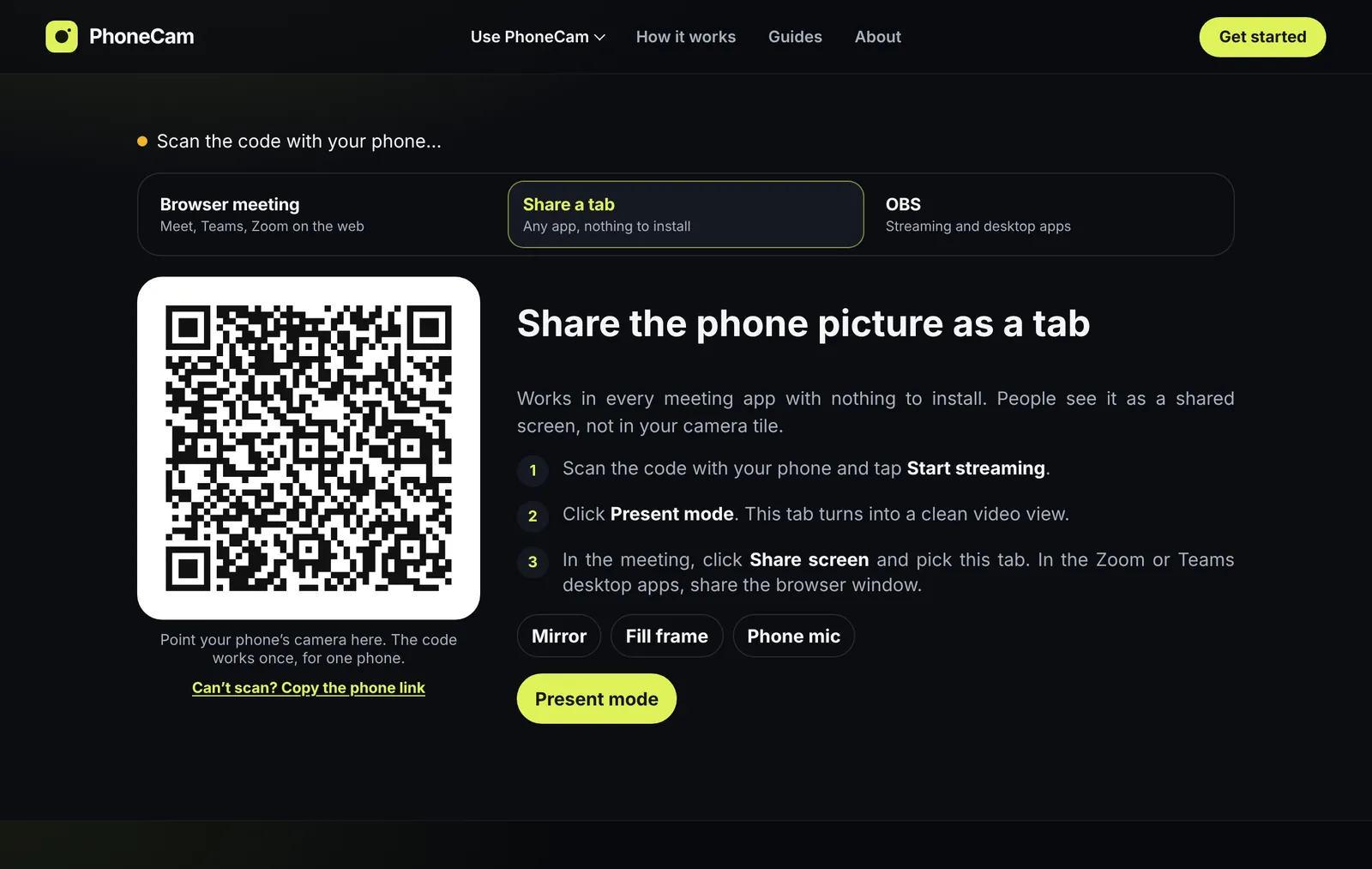
- On the laptop, open PhoneCam and pick how the meeting gets the picture: the browser extension, sharing a tab, or OBS. You get a room code and a QR code.
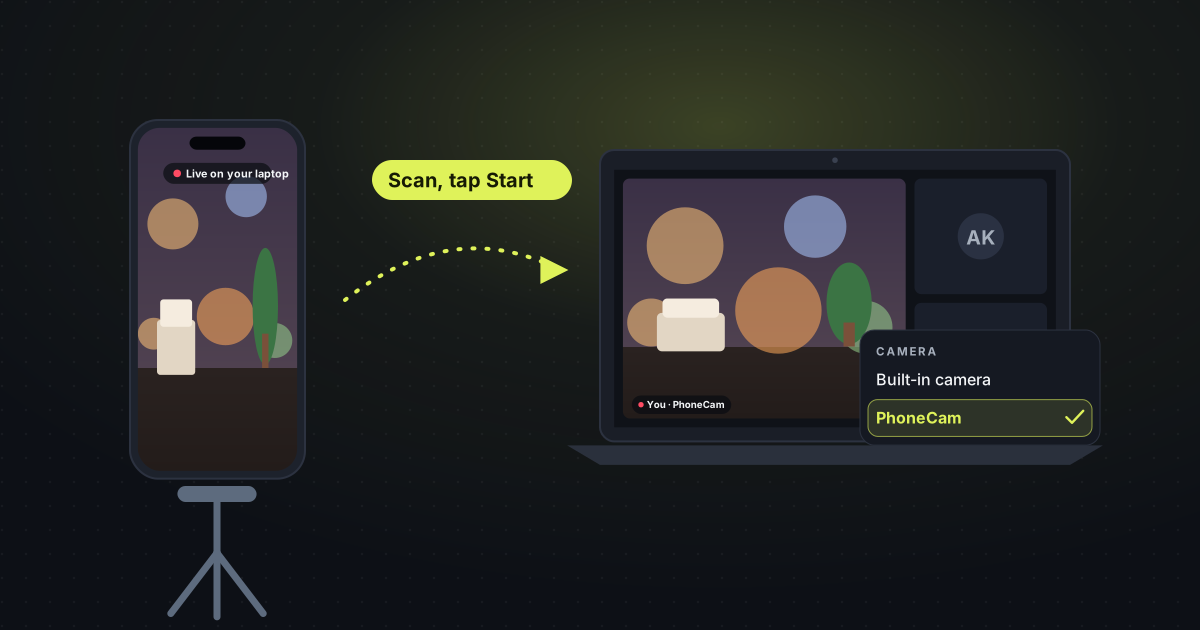
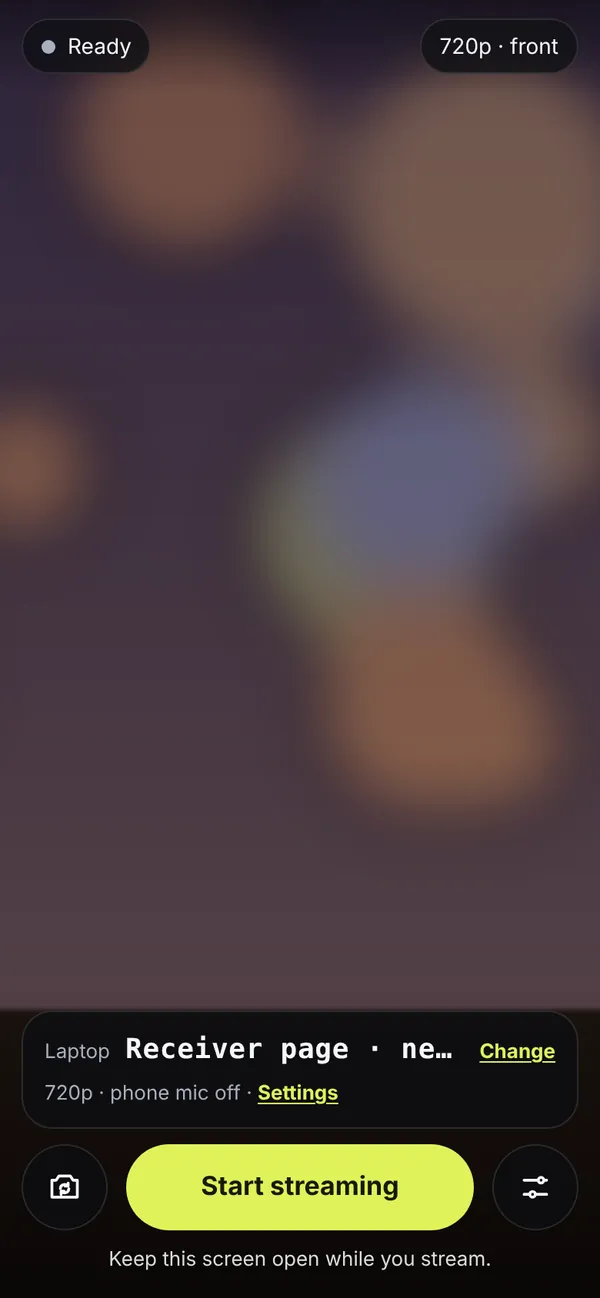
- On the phone, scan that code with the camera app. PhoneCam opens in the browser. Tap Start. Keep the screen on.
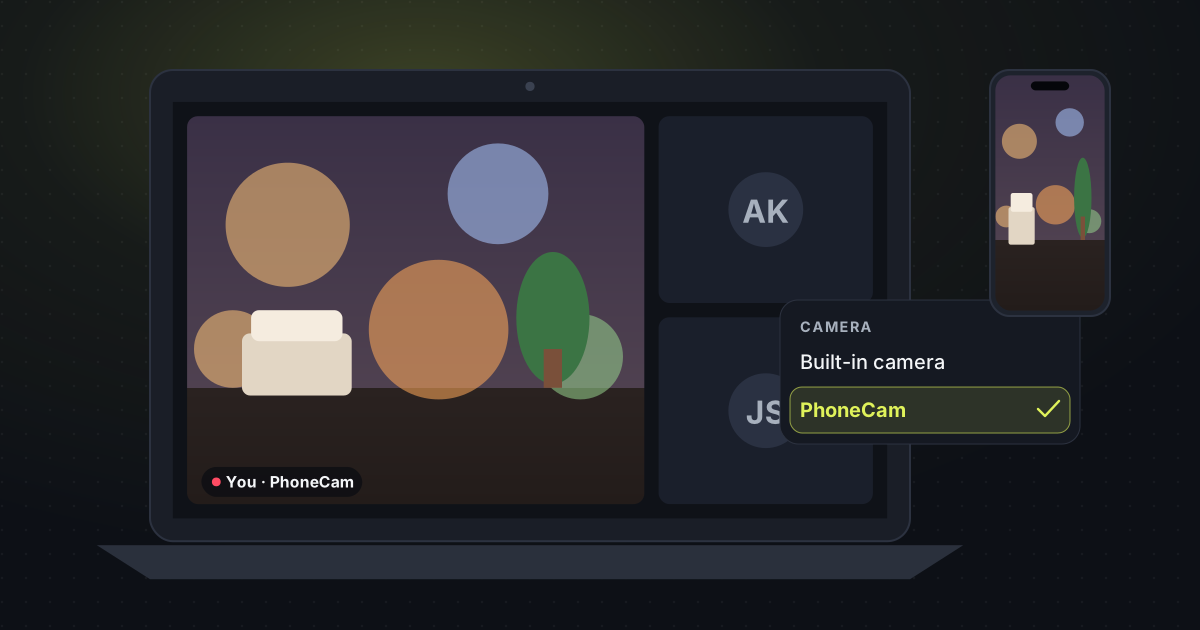
- In the meeting, choose the camera called PhoneCam, share the PhoneCam tab, or pick OBS Virtual Camera.
After the first scan, the phone remembers the laptop. Next time you open PhoneCam on the phone and tap Start.
How good is the picture?
You can send 480p, 720p or 1080p at 30 frames a second, from the front or the back camera. The phone’s microphone can come along too. The video goes from the phone to the laptop over an encrypted peer-to-peer link. A free service only introduces the two devices. It does not see the picture.
Which phone?
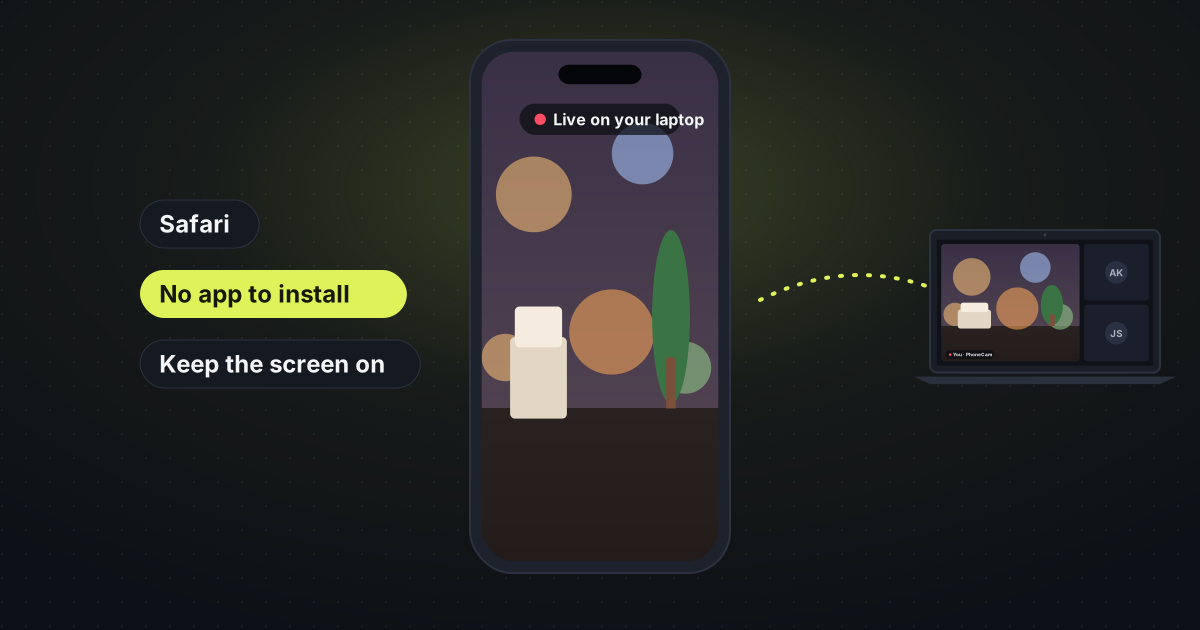
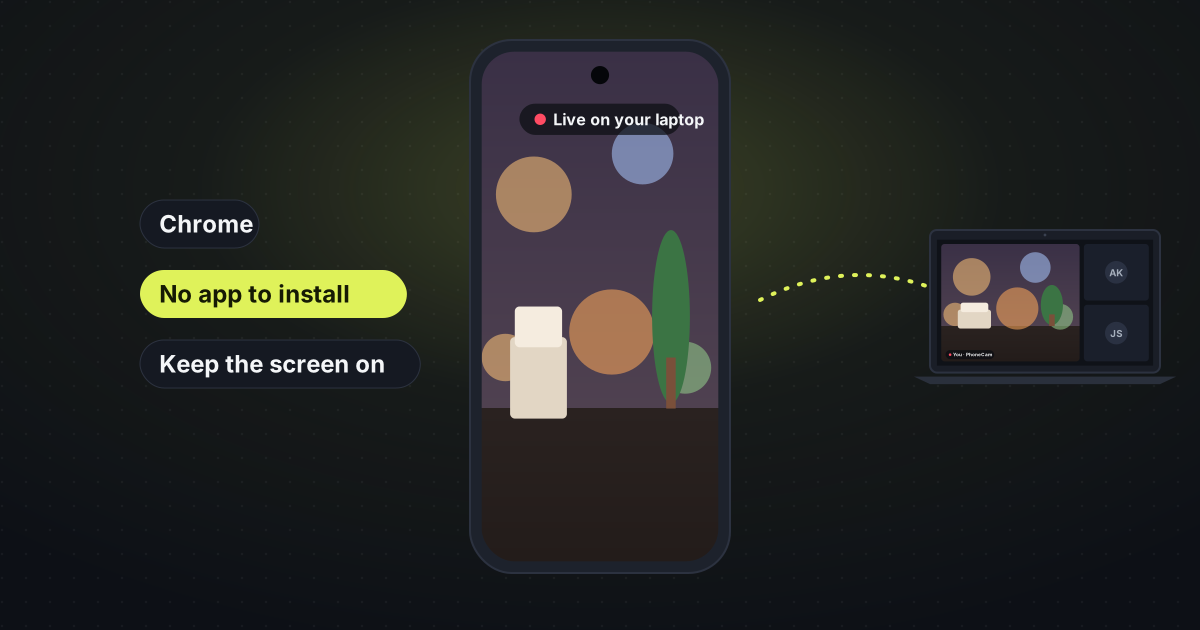
iPhone opens in Safari. Android opens in Chrome. The laptop side is the same either way, including Zoom, Meet and Teams and OBS.
If you were comparing this with buying a camera, read why a phone and a cheap stand are enough.